Thursday, July 12, 2012

Get The First and The Last Day of The Month

Just saw a question from someone on a mailing list I join asking for how to get the transactions occurring for the last three months (in other words, three months from current date).


First, you may want to do something simple.
To get the first day and the last day of the month, we can use:

SELECT 
DATEADD(month, DATEDIFF(month, 0, GETDATE()), 0),
DATEADD(month, DATEDIFF(month, 0, GETDATE())+1, 0) - 1


If you play around a little bit, you can also get the first day and the last day of the previous month:

SELECT 
DATEADD(month, DATEDIFF(month, 0, GETDATE())-1, 0),
DATEADD(month, DATEDIFF(month, 0, GETDATE()), 0) - 1


To get the transactions for the last three months, we just need to modify the number a little bit.

SELECT
DATEADD(month, DATEDIFF(month, 0, GETDATE())-2, 0),
DATEADD(month, DATEDIFF(month, 0, GETDATE())+1, 0) - 1


Then, just select the transactions occurring in between these ranges.

SELECT * FROM TableName WHERE TransactDate BETWEEN
DATEADD(month, DATEDIFF(month, 0, GETDATE())-2, 0) AND
DATEADD(month, DATEDIFF(month, 0, GETDATE())+1, 0) - 1

Share:

Wednesday, July 11, 2012

Select Several Rows into One Row in SQL

In SQL Server, there are times when we want to consolidate the content of several rows into one row.

Though it is not meant for sophisticated purposes, there is actually a simple and easy way to do this.
Suppose we have a Member table containing  MemberID and Name fields.

To select the names of the members in one row, simply use the query:


DECLARE @strResult VARCHAR(5000)
SELECT @strResult = COALESCE(@strResult + ', ', '') + Name
FROM Member

SELECT MembersName = @strResult


The result will be:


We can also add some conditions to the select statement.
e.g. To generate the members with name containing 'Himura', we can simply do:


DECLARE @strResult VARCHAR(5000)
SELECT @strResult = COALESCE(@strResult + ', ', '') + Name
FROM Member
WHERE Name LIKE '%himura%'

SELECT TheHimura = @strResult


And we'll get:

That's all folks :)
Share:

Friday, June 15, 2012

Formulas Not Calculating in Excel 2007

I just encountered a weird problem.
When I open an excel document, the formula does not seem to calculate. I have a cell containing formula. When I change the value of other cells which form the formula, the cell containing the formula does not change.

Find the solution. Somehow, the settings on my Excel changes.
I am using Office 2007. To enable the formula calculation, go to the Excel Menu, click Excel Options.


On the Formulas tab -> Calculation options, Choose Automatic. It was Manual before. If you choose Automatic, then the result of the formula will be refreshed everytime the document is loaded.


There is another workaround, if you don't want the formula to be recalculated everytime the file is opened. Press F9 to refresh the value of the cells with formula.
Share:

Wednesday, May 9, 2012

Access to Temp Directory is Denied

Error:
When deploying application and viewing the web page, the following error occurs:
Access to the temp directory is denied.
Identity 'IIS APPPOOL\WebAppPool' under which XmlSerializer is running does not have sufficient permission to access the temp directory. CodeDom will use the user account the process is using to do the compilation, so if the user doesnt have access to system temp directory, you will not be able to compile. Use Path.GetTempPath() API to find out the temp directory location.

Solution:
Go to IIS, change advanced settings of the application pool used for the website, then under Process Model Category, change the Identity to ApplicationPoolIdentity.
Share:

Cannot Display Web Page on IIS due to Configuration Error

Error:

HTTP Error 500.19 - Internal Server Error

The requested page cannot be accessed because the related configuration data for the page is invalid.

Config Error: There is a duplicate 'system.web.extensions/scripting/scriptResourceHandler' section defined
Config File:  Application\Web\web.config

The error on IIS 7.5 should look like this.


Solution:
Open web.config, and then comment out the "system.web.extensions" sectionGroup under configSections tag.
For example:
<!--<sectiongroup name="system.web.extensions">
............
............
...........
</sectiongroup>-->
Share:

Thursday, March 22, 2012

Data Type Exception Error

Error:
This is only part of the errors, since it is quite long, I will just quote the core part.

System.Web.HttpUnhandledException: Exception of type 'System.Web.HttpUnhandledException' was thrown. ---> System.InvalidOperationException: DataReader.GetFieldType(5) returned null.

This happens when I deploy a web application developed under Visual Studio .Net 2010 using SQL Server 2008 R2 for the database. The query used happen to retrieve fields of type hierarcyid. It works on other machines, this is the first time I encountered such error.
After searching through the internet, I found a solution in a thread on MSDN forum.

Seems that not only for table with field of CLR data type: hierarchyid, fields of Spatial type: geometry and geography also could result in such error.

Solution:
Add the file C:\Program Files\Microsoft SQL Server\100\SDK\Assemblies\Microsoft.SqlServer.Types.dll to the project (as a reference), or simply copy the DLL file to the bin folder in which the project is deployed.

Reason:
According to the post, it seems that the new SQL Server 2008 data types are not native .NET data types. On the machine where the application is deployed to, the DLL file was not available, so the DataAdapter can't initialize the data types correctly.
Share:

Tuesday, May 10, 2011

Object Name is Not Declared

Error BC30451: Object_name is not declared
An object, e.g. button, linkbutton, or lable is created on the .aspx page. The intellisense does detect the object name. However, when it is debugged, it gives the error Object_name is not declared, where Object_name is the name of the object.

Solution:
1. If you are web application project, try deleting the aspx.cs or aspx.vb (code) file, then right-click the .aspx file, and choose Convert to web application.

2. Check if there is another copy of the same files in the same folder. This happens to me quite some times. Before doing major changes, I usually make a copy of the files first. The files are usually automatically included in the solution we are developing. Since the class of the copies have the same names, they conflict each other. Move the copy from the folder or simply exclude the copies from the solution by right-clicking on the files, then choose "Exclude From Project". See if it solves the issue.

3. If neither solution 1 nor 2 solves the issue, try adding new files with different names, then copy the content of the old files to the new ones. Note that the names of the class can not be the same. Try compiling and see if it works. If it does, you can then delete or move the old files, then rename the new files according to the old ones.

4. If none of the alternatives above work, try finding from internet, then POST IT HERE! Thanks ^_^
Share:

Thursday, May 5, 2011

Paging in SQL 2

Regarding my post about Paging in SQL, I have found another easier way to include a column as a running number of the records. Hence, we do not need to create a temporary table, and the code will be much simpler.

I will use the same tables for example. In case you find difficulty finding the post about Paging in SQL, I include them here.

Here is the Create table Query:
CREATE TABLE dbo.MsUser
(  UserID CHAR(20) PRIMARY KEY,
   Username VARCHAR(100),
   Address VARCHAR(50),
   DivisionID INT
)

And here is the query to insert sample data:
-- Insert Data into MsUser
INSERT INTO dbo.MsUser VALUES ( 'Himura', 'Miss Himura', 'Earth', 3 )
INSERT INTO dbo.MsUser VALUES ( 'Selvia', 'Selvia', 'Indonesia', 2 )
INSERT INTO dbo.MsUser VALUES ( 'Superman', 'Clark Kent', 'Earth', 2 )
INSERT INTO dbo.MsUser VALUES ( 'SelviaHimura', 'Selvia Himura', 'Earth', 4 )
INSERT INTO dbo.MsUser VALUES ( 'Luck', 'Steven Luck', 'Indonesia', 1 )
INSERT INTO dbo.MsUser VALUES ( 'SuperLuck', 'Super Luck', 'United States', 1 )
INSERT INTO dbo.MsUser VALUES ( 'Selvi', 'Selvi', 'Indonesia', 1 )
INSERT INTO dbo.MsUser VALUES ( 'Lucky', 'Lucky Luke', 'United States', 3 )
INSERT INTO dbo.MsUser VALUES ( 'Steven', 'Steven', 'Earth', 4 )

Here is the data inserted to the tables:

Here is the query to get the data using paging:
DECLARE @PageSize INT, @PageNo INT
SELECT a.Username FROM (
    SELECT Username, RowNumber = ROW_NUMBER() OVER (ORDER BY Username) 
    FROM MsUser
) a WHERE a.RowNumber BETWEEN (@PageNo - 1 )* @PageSize + 1 AND @PageNo * @PageSize

Note that the key is in this part of code:

ROW_NUMBER() OVER (ORDER BY Username)


If the PageSize is set to 5 item per page, then the top 5 users will be displayed on Page 1 and the next 5 users will be displayed on Page 2.

e.g. 1
PageSize = 5, PageNo = 1
DECLARE @PageSize INT, @PageNo INT
SELECT  @PageSize = 5, @PageNo = 1
SELECT a.Username FROM (
    SELECT Username, RowNumber = ROW_NUMBER() OVER (ORDER BY Username) 
    FROM MsUser
) a WHERE a.RowNumber BETWEEN (@PageNo - 1 )* @PageSize + 1 AND @PageNo * @PageSize

The data retrieved on Page 1 will be:

e.g. 2
PageSize = 5, PageNo = 2
DECLARE @PageSize INT, @PageNo INT
SELECT  @PageSize = 5, @PageNo = 2
SELECT a.Username FROM (
    SELECT Username, RowNumber = ROW_NUMBER() OVER (ORDER BY Username) 
    FROM MsUser
) a WHERE a.RowNumber BETWEEN (@PageNo - 1 )* @PageSize + 1 AND @PageNo * @PageSize

And the data retrieved on Page 2 will be:

Share:

Thursday, April 14, 2011

Root Element is MIssing

Error:
System.Xml.XmlException: Root element is missing.
Solution:
If you are using Web Service, check if the URL of the web service is properly set.
For example:
The URL for the web service is
http://localhost:8081/WebName/WebService.asmx

The error occurs when the URL used is, for instance:
http://localhost:8081/WebName
Share:

Monday, April 11, 2011

Compiling Assembly using TASM in Textpad

Continuing my last post about compiling and running assembly file, it is actually possible to easier compile and run assembly file from Textpad (unfortunately, you have to search for the Textpad text editor yourself :), and I think it is not hard to find it ;)).

Still, I am using TASM20 to compile and run the assembly file.
Assumption: The Tasm.exe & Tlink.exe files used to compile assembly file are located at C:\tasm20\TASM.

Here are the steps:
1. Create an assembly file on the same folder. The following coba.asm file is used to print character 'A'. The file can be created using any text editor.


2. Open Textpad, Go to menu Configure -> Preferences.


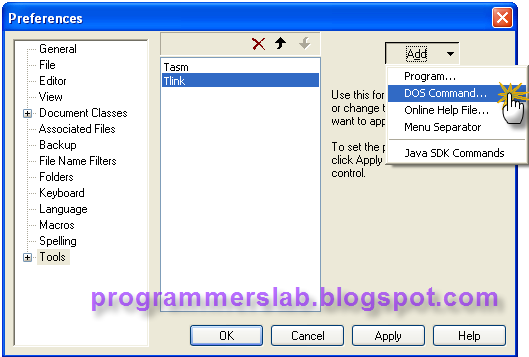
3. Choose Tools, then click Add.


4. Click Add -> Program -> browse for TASM.exe.


5. Click Add -> Program -> browse for TLINK.exe.

6. Click Add -> DOS Command -> type "cmd" (without quotes).


7. Notice that the added Programs and Dos command are now available in the middle listbox. Click Apply.


8. Expand Tools -> click on Tasm -> change the Parameters: $basename.


9. Click on Tlink -> change the Parameters: $basename /t.


10. Click on cmd -> change the Parameters: $basename, then click OK.


11. You will notice that the commands to compile and run the assembly file are now available on the menu Tools.


12. Open the assembly file coba.asm created on step 1.

13. To compile and run the program, press ctrl + 1, ctrl + 2, and ctrl + 3 respectively on the .asm file window.

14. After executing ctrl + 1 on the .asm file window, the result will be shown in Command Results window.


15.After executing ctrl + 2 on the .asm file window, the result will be shown in Command Results window.


16. To see the result, execute ctrl + 3 on the .asm file window. The result will be shown in Command Results window.


17. We are now done with the result of the assembly code :D
Share:

Compiling Assembly using TASM in command prompt

Are you learning Assembly language, and confused about how to compile assembly file?
TASM20 is one of assembly compilers that works with Windows XP and Windows 2000 operating system. However, it does not work with Windows 7 64-bit operating system.
If you are using Windows XP or Windows 2000, you can try the following steps to compile and run assembly file.
To download TASM20, the compiler used for assembly file, click here.

Assumption: The Tasm.exe & Tlink.exe files used to compile assembly file are located at C:\tasm20\TASM.

1. Open command prompt by pressing Windows + R, or go to Start menu -> Run, then type "cmd" (without quotes).

2. Go to the folder where the Tasm.exe & Tlink.exe files used to compile assembly file are located, i.e. C:\tasm20\TASM.
cd\tasm20\tasm
 

3. For instance, we have made an assembly file named coba.asm used to print character 'A' as following:

4. Commands used:
- To compile the assembly file, use command:
tasm <asm_filename>.asm
e.g.
tasm coba.asm

After executing the command above, an object file (coba.asm) will be created.

- To create .COM file, use command:
tlink /t <obj_filename>.obj
e.g.
tlink /t coba.obj

- To run the result (.COM file), use command:
<com_filename>
e.g.
coba

5. That's all, folks :)
Share:

You may be intersted in

Related Posts

Updating Table Containing Xml Column via LinkedServer

If you are trying to update a table containing XML column via Linked Server in SQL Server, and you are not able to, you are not alone. There...

About Me

My photo
Is an ordinary man, with a little knowledge to share and high dreams to achieve. I'd be glad if I can help others, 'coz the only thing for the triumph of evil is for a good man to do nothing.

About Blog

You can find a lot of debugging and deploying problems while developing applications in .NET and Visual Basic here. There are also some querying tips in SQL and typical source codes which might be useful shared here.

Popular Posts

Blogroll

Followers

Leave a Message