Wednesday, October 14, 2009

Creating Sub Report using TTX in VB

Before creating sub report using TTX in VB, you should have already known how to create report using TTX. Otherwise, you may want to find out how to create report using TTX in my previous post.

Before going to the sub report, it's a good idea to share the code query in Visual Basic used to retrieve the data first.


Private Sub cmdPrint_Click()
Dim rs As New ADODB.Recordset 'recordset for main report
Dim rs1 As New ADODB.Recordset 'recordset for subreport
Dim sql As String
With CrystalReport1
.Reset
'Set data for main report
sql = "select CustomerID, CompanyName, ContactName, ContactTitle, " & _
"Address from Customers where Country = '" & cmbCountry.Text & "'"
Set rs = New ADODB.Recordset
Set rs = con.Execute(sql)

.ReportFileName = App.Path & "/RptTest.rpt"
.Destination = crptToWindow
.SetTablePrivateData 0, 3, rs
'End set data for main report

'Set data for subreport
.SubreportToChange = .GetNthSubreportName(0)
sql = "select a.customerid, d.productname, c.quantity, c.unitprice " & _
"from customers a " & _
"left join orders b " & _
"on b.customerid = a.customerid " & _
"left join orderdetails c " & _
"on c.orderid = b.orderid " & _
"left join products d " & _
"on d.productid = c.productid " & _
"order by a.customerid, d.productname"
Set rs1 = New ADODB.Recordset
Set rs1 = con.Execute(sql)
.SetTablePrivateData 0, 3, rs1
'End set data for subreport

.WindowState = crptMaximized
.WindowShowPrintBtn = True

.Action = 1
End With
End Sub

Suppose here's the data retrieved in the main report:
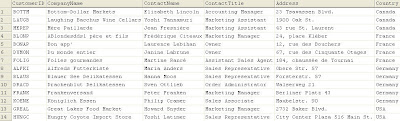

And here's the data retrieved in the sub report:
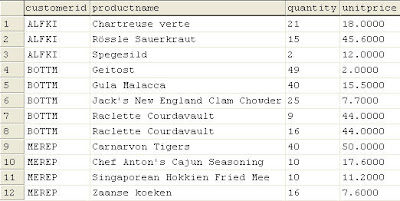

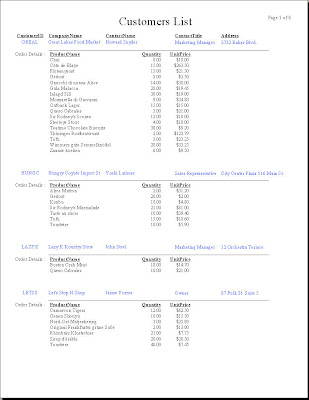
In this case, we would retrieve the data on the main report, while at the same time, show the orders made by each customer.

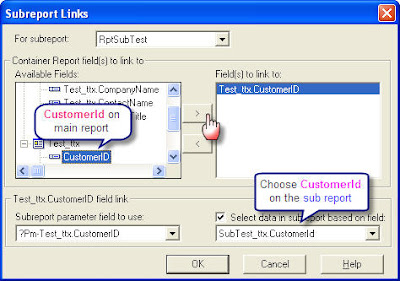
Note that there has to be one or more linking fields between the report and sub report in this case. In the data shown above, the linker is the field CustomerId.

Steps in creating the sub report:
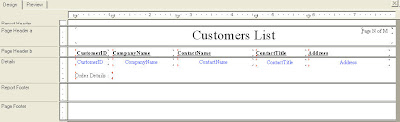
1. Assume the main report is done, like the following picture (if you have not tried making the main report, you may want to refer to my previous post about making the main report):


2. To insert sub report, choose menu Insert -> Subreport, then a dialog box will be prompted, insert the desired sub report name, then click Report Expert.
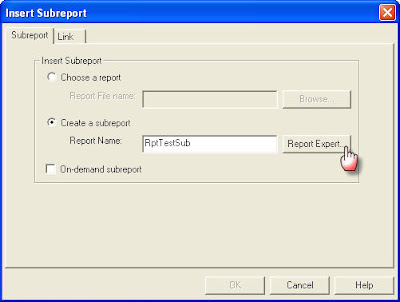


3. Another dialog boxes will be prompted, we will have to create new TTX for the sub report. The steps are the same as those used in creating the TTX for the main report.
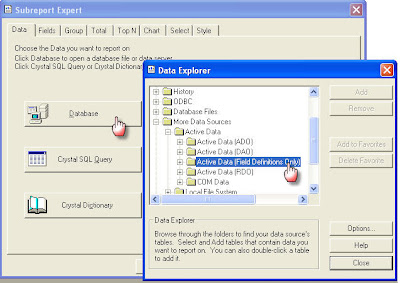

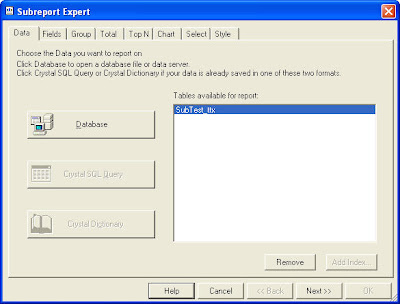
4. After finished creating the TTX, add the TTX to the report.

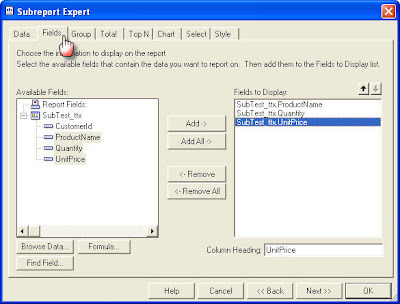
5. Then, go to tab Fields, Add the fields to be displayed on the report, then click OK.

6. And here's the report with the sub report embedded in it.
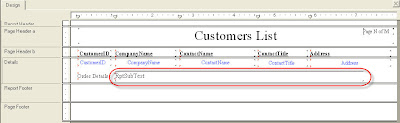

7. To Edit the view of sub report, double click on the report, and arrange it to get desired layout.
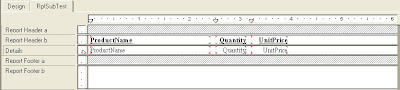

8. After done with the layout of the sub report, we have to go back to the main report to link the report and the sub report to get desired data grouped by certain field(s). In the data used above, the linker field is CustomerId. Right-click on the sub report, choose Change Subreport Links. As we're going to link the field CustomerId in the main report and the subreport, choose the field on the main report, then select the linking field in the sub report (Make sure the field linked on the lower right is the field which belongs to the sub report, not the main report). Click OK.

9. Now we're finished with the main and sub report.

After running the program, we will get a report which contains the data of the Customers and the order details of each customer as the picture shown below.


That's all folks... Good Luck ^^
Share:

Friday, October 2, 2009

Playing with Query - Grouping

Query Language : SQL

Simply saying, here are the tables:
table users (userid, name)
table book (bookid, bookname, author)
table review (reviewId, UserId, BookId, Comment, ReviewDate)

Question: Find users who have reviewed 2 different books on the same day!

Query for creating tables:
create table users (userid int , [name] varchar(50))
create table book (bookid int, bookname varchar(50), author varchar(50))
create table review (reviewId int , UserId int, BookId int, Comment varchar(50), ReviewDate datetime)


Query for data sample:
insert into users values (1, 'A')
insert into users values (2, 'B')
insert into users values (3, 'C')

insert into book values (1, 'Book A', 'Author A')
insert into book values (2, 'Book B', 'Author B')
insert into book values (3, 'Book C', 'Author C')

insert into review values (1, 1, 1, 'AAAA', getdate()-5)
insert into review values (2, 1, 2, 'AAAA', getdate()-5)
insert into review values (3, 1, 3, 'AAAA', getdate()-5)
insert into review values (4, 2, 1, 'AAAA', getdate()-4)
insert into review values (5, 2, 2, 'AAAA', getdate()-4)
insert into review values (6, 2, 1, 'AAAA', getdate())
insert into review values (7, 3, 2, 'AAAA', getdate())
insert into review values (8, 3, 1, 'AAAA', getdate())


By using the query below:
select a.userid, a.userid, b.name, a.bookid, c.bookname, a.reviewdate
from review a
left join users b on b.userid = a.userid
left join book c on c.bookid = a.bookid


The resulting records will be:


Answer:
select * from
(
   select userid, bookSum = count(userid), reviewDate = convert(char(10), reviewdate, 105)
   from review
   group by userid, convert(char(10), reviewdate, 105)
) a
where bookSum = 2


or

select userid, bookSum = count(bookid), reviewDate
from review
group by userid, convert(char(10), reviewdate, 105)
having count(bookid) = 2

And the resulting records will be:


PS: Convert to type 105 is only aimed to convert the type of the date to dd-MM-yyyy so that the date to be compared does not include the time.
Share:

Wednesday, September 30, 2009

Fail creating virtual directory

Error: Creation of the virtual directory http://localhost/web failed with error: Could not find the server 'http://localhost' on the local machine. Creating a virtual directory is only supported on the local IIS server.

This error appear as a dialog box when trying to load a project whose virtual directory had been created formerly.

Actually, there are two dialog box:
1. The first dialog box sounds: The local IIS URL http://localhost for Web project web has not been configured. In order to open this project the directory needs to be configured. Would you like to create the virtual directory now?

2. After clicking yes, the second dialog box appears: Creation of the virtual directory http://localhost/web failed with error: Could not find the server 'http://localhost' on the local machine. Creating a virtual directory is only supported on the local IIS server.


Solution:
The solutions may vary in this case. Here are some possible solutions:
1. Make sure the asp.net is already registered to the IIS. You may want to try registering it to IIS

2. The virtual directory of the project might not have been set properly, so it can not be loaded. Edit the virtual directory of the project by right-clicking the project, choose Edit project (.csproj) file, then at the bottom part of the file, you may find something like <iisurl>http://localhost/</iisurl>
Change / add the name of the web project, e.g. <iisurl>http://localhost/webname</iisurl>

3. Make sure the IIS is running well on services.msc. To check it, press windows + Run, type "Services.msc" (without quotes), then restart IIS Admin.


Afterwards, restart the IIS by pressing windows + Run, type "inetmgr" (without quotes), then start the service.


4. This is a rare case, but someones might encounter it too. If you are using another web server on your computer, e.g. Apache, xampp, etc., make sure you stop the web server first, then start the IIS. In a case I met, it still didn't work, after about half an hour trying to find the problem, I found the issue. Someone changed the port used for the web server. So, I had to change it again.
On the IIS window, right click on the Default Web Site, choose Properties, then make sure the port used is 80 (I'm not sure if using another port is ok here).

Share:

Friday, August 21, 2009

Login fail for Sql User

Error: server: msg 18452, level 16, state 1 [microsoft][odbc sql server driver][sql server]login failed for user 'user_name'. Reason: not associated with a trusted sql server connection

Solution: Open Sql Server Enterprise Manager, go to SQL Server Group -> Choose the server -> right-click, Properties -> choose tab Security -> Choose Sql Server and Windows for Authentication, then click OK, and don't forget to restart the service to make sure the new settings work.


Share:

Thursday, August 13, 2009

Awards from friend

I've just noticed the way to put awards from friends... hahaha.. lol
Awards from Ria Adria ^^


Photobucket
Share:

Tuesday, July 28, 2009

Unable to start debugging on the web server

Error : Error while trying to run project: Unable to start debugging on the web server. Server side-error occurred on sending debug HTTP request.

Make sure the server is operating correctly. Verify there are no syntax errors in web.config by doing a Debug.Start without Debugging. You may also want to refer to refer to the ASP.NET and ATL Server debugging topic in the online documentation.

This error appears as a dialog box while trying to debug a web application.

Solution : Run the application without debugging. You can :
1. Use Ctrl + F5, not F5, or
2. Directly type the URL address on the browser, or
3. Open IIS by pressing window + R, then type inetmgr, expand the web application under development, and browse it

You'll see the source of the error.

In a case I met, it's because of the unavailability of an impersonate user on the computer, while in the web.config, an impersonate user is used.

In case you meet the same condition; and in the web.config, there exists such code as:

<identity impersonate="true" username="uploaduser" password="uploaduser">


Go to Computer Management by pressing Window + R, then type "compmgmt.msc" (without quotes) -> Expand Local Users and Groups -> Users. If the user : uploaduser defined in web.config does not exist there, make the user by right-clicking, New User -> fill the user's information. Otherwise, if the user already exists, make sure that the account is not disabled. Just enable it by going to the properties if it is currently disabled.
Share:

Saturday, July 25, 2009

Making table of contents in ms. word 2007

There are times when we need to make table of contents after making an article. It would be quite troublesome to make it manually if the article is long enough. Fortunately, if you're writing it in ms. office, there has been a functionality provided for it.

Here is a video about how to make table of contents using ms. word 2007. It should be more or less the same using earlier or later version of ms. word ^^


Share:

Friday, July 24, 2009

Retrieving Tables and Columns in a Database

This is how to retrieve tables & columns in the table from a database:


Dim rs As ADODB.Recordset
Set rs = New ADODB.Recordset
Set rs = con.OpenSchema(adSchemaColumns)

While Not rs.EOF
Text1.Text = Text1.Text & rs!Table_Name & " - " & rs!COLUMN_NAME & vbCrLf
rs.MoveNext
Wend

Share:

Retrieving Tables in a Database

This is how to retrieve all tables in a database:
Object needed:
A Textbox named Text1


Dim rs As ADODB.Recordset
Set rs = New ADODB.Recordset
Set rs = con.OpenSchema(adSchemaTables)
While Not rs.EOF
If rs!Table_Type = "TABLE" Then Text1.Text = Text1.Text & rs!TABLE_NAME & vbCrLf
rs.MoveNext
Wend

Share:

How to get column names of a table

This is how to retrieve column / field names of a table from VB using adodb connection:


con.Open "Provider=Microsoft.Jet.OLEDB.4.0;Data Source=" & App.Path & "\database.mdb;Persist Security Info=False"

Set rs = New ADODB.Recordset
sql = "select * from table_name"
Set rs = con.Execute(sql)

Dim i As Integer
For i = 0 To rs.Fields.Count - 1
MsgBox rs.Fields(i).Name
Next

Share:

Thursday, July 23, 2009

CustomError mode

Error :

Server Error in '/' Application.
Runtime Error
Description: An application error occurred on the server. The current custom error settings for this application prevent the details of the application error from being viewed remotely (for security reasons). It could, however, be viewed by browsers running on the local server machine.

Details: To enable the details of this specific error message to be viewable on remote machines, please create a <customErrors> tag within a "web.config" configuration file located in the root directory of the current web application. This <customErrors> tag should then have its "mode" attribute set to "Off".

<!-- Web.Config Configuration File -->

<configuration>
<system.web>
<customErrors mode="Off"/>
</system.web>
</configuration>


Notes: The current error page you are seeing can be replaced by a custom error page by modifying the "defaultRedirect" attribute of the application's <customerrors> configuration tag to point to a custom error page URL.

<!-- Web.Config Configuration File -->

<configuration>
<system.web>
<customErrors mode="RemoteOnly" defaultRedirect="mycustompage.htm"/>
</system.web>
</configuration>

Solution : The exact error hidden in this error message may vary. To reveal and see the error, changing the customErrors mode is necessary.
In web.config, change to mode to RemoteOnly or Off.
Changing the mode to RemoteOnly will enable the error message to be displayed when the web is viewed on the server.
Meanwhile, changing the mode to Off will enable the error message to be displayed when the web is viewed either on the server of outside.


<customErrors mode="Off" defaultRedirect="ErrorPage.aspx">
<error statusCode="404" redirect="ErrorPage.aspx?errNo=404"/>
</customErrors>
Share:

You may be intersted in

Related Posts

Updating Table Containing Xml Column via LinkedServer

If you are trying to update a table containing XML column via Linked Server in SQL Server, and you are not able to, you are not alone. There...

About Me

My photo
Is an ordinary man, with a little knowledge to share and high dreams to achieve. I'd be glad if I can help others, 'coz the only thing for the triumph of evil is for a good man to do nothing.

About Blog

You can find a lot of debugging and deploying problems while developing applications in .NET and Visual Basic here. There are also some querying tips in SQL and typical source codes which might be useful shared here.

Popular Posts

Blogroll

Followers

Leave a Message