Wednesday, June 23, 2010

Error with ADO Data Control

Error:
Procedure declaration does not match description of event or procedure having the same name.

Solution:
If you are using ADO Data Control, use Microsoft ActiveX Data Object 2.5 or later.
To add the reference:

1. Go to menu Project -> References.

2. From the list of available References, deselect references to Microsoft ActiveX Data Objects prior to version 2.5 (if any).

3. From the list of available References, select Microsoft ActiveX Data Objects 2.5 or later.

For more information about this issue, visit Microsoft Support.
Share:

Friday, March 26, 2010

Award from Friend

This is another blog award from a friend, a programmer too, Kampoeng-IT. Through this post, I would like to thank this friend for the award :)


I don't have time to give this award back to the other friends, quite busy right now.

Share:

Saturday, March 13, 2010

Creating List and Retrieving Corresponding Field on Ms. Excel

This post is specially made for a girl.

You can download the samples about how to create list and retrieve field from corresponding item below on the same file and how to create list and retrieve field from corresponding item from different file below.

How to Create List in Microsoft Excel 2007

1. First of all, we have to make a list of items which are to be shown in the list as shown below:


Name the Worksheet: Items.


2. Create a new Worksheet on the same file, then go to a cell in which the list of items is to be prompted.

Image:


In the sample, the cell in which the items list is to be prompted is A4.

Click on cell A4, then go to menu Data -> Data Validation -> Choose Data Validation.


3. A dialog box will be prompted. On the Validation criteria, choose Allow: List.

Image:


4. On the Source field, fill the source of the items list previously made on the first Sheet, i.e. Sheet Items, then click OK. From the sample above, the source of the items are in the range A2 to A14.

Image:

Format of the source field:
=Sheetname!CellsRange

PS: $A$2:$A$12 -> $ is used on between the cells to fix the range; thus, when the formula on cells A4 is to be copied to the other cells, it will remain $A$2:$A$12 instead of changing according to the new cells.


5. Copy (ctrl+C) and paste (ctrl+V) the list already made on cell A4 to the other cells in which the items list is to be prompted. In the sample, cell A4 is copied to the cells below, i.e. A5..A27

Image:


How to Retrieve The Value of Corresponding field in Microsoft Excel 2007

As shown on the sample above:


Each item (on column A) has its corresponding price (on column B). After creating the list of items, we will retrieve the price of the item when an item is selected.

1. To make it more obvious, create a new Sheet on the same file again. Then, repeat the steps to make lists of items as shown above. Afterwards, add a column to the right to retrieve the corresponding price for the item selected. If everything goes fine, the result should look like the sample below.

Image:


2. On B4 (the cell in which the price is to be retrieved), insert the formula to retrieve the price of the corresponding item. In this formula, we use the functionality of INDEX to Return the value of a specified cell or array of cells and MATCH to Return the relative position of an item in an array that matches a specified value in a specified order (though there may be some other methods which can be used to do the same function).

Image:


Format of INDEX:
INDEX(array_or_list_of_items, row_number, column_number)


Format of MATCH:
INDEX(item_to_be_matched, lists_of_data, match_type)

We will not need match_type for the moment.
By the way, if you are interested in knowing further about the usage of the formula, refer to the help in the Microsoft Excel itself (press F1 on Microsoft Excel for help).


3. Copy (ctrl+C) and paste (ctrl+V) the list already made on cell B4 to the other cells in which the items list is to be prompted. In the sample, cell B4 is copied to the cells below, i.e. B5..B27

Image:


4. Try selecting the item, you will find out that the price of the corresponding item is shown according to the data on the Sheet Items once an item is selected.

Image:


WAIT! We are not done yet.
What if we want to make the list and retrieve the price from data (list of items and prices) which is located on another file?


1. Follow the steps above about how to create list. The only difference is on the formula.

Image:


Format of the formula if the data is located on another file on the same folder:
=[filename]Sheetname!CellsRange

Format of the formula if the data is located on another file NOT on the same folder:
='path\[filename]Sheetname'!CellsRange
e.g.
=INDEX('C:\[File1.xlsx]Items'!$A$2:$C$12)


2. Change the formula to retrieve the price too.

Image:


3. Copy and paste the cells to the cells below to ease your work.

Image:


Here are the samples: Data on the same file and Data on different file.
Share:

Sunday, March 7, 2010

Paging in SQL

Haven't posted anything for quite some time. This post is about how to make paging in SQL.

If you are interested, you can follow the steps and execute the query provided. Else, I also provide the source code. You can download and observe it later.

Before getting into the code, execute this query to create the tables first. 2 Tables are used.

create table dbo.MsUser
( UserID char(20) primary key,
Username varchar(100),
Address varchar(50),
DivisionID int
)

-- Create Table MsDivision
create table dbo.MsDivision
( DivisionID int primary key,
DivisionName varchar(50)
)


And here is the query to insert sample data:

-- Insert Data into MsDivision
insert into dbo.MsDivision values ( 1, 'IT' )
insert into dbo.MsDivision values ( 2, 'IS' )
insert into dbo.MsDivision values ( 3, 'Finance' )
insert into dbo.MsDivision values ( 4, 'Management' )

-- Insert Data into MsUser
insert into dbo.MsUser values ( 'Himura', 'Miss Himura', 'Earth', 3 )
insert into dbo.MsUser values ( 'Selvia', 'Selvia', 'Indonesia', 2 )
insert into dbo.MsUser values ( 'Superman', 'Clark Kent', 'Earth', 2 )
insert into dbo.MsUser values ( 'SelviaHimura', 'Selvia Himura', 'Earth', 4 )
insert into dbo.MsUser values ( 'Luck', 'Steven Luck', 'Indonesia', 1 )
insert into dbo.MsUser values ( 'SuperLuck', 'Super Luck', 'United States', 1 )
insert into dbo.MsUser values ( 'Selvi', 'Selvi', 'Indonesia', 1 )
insert into dbo.MsUser values ( 'Lucky', 'Lucky Luke', 'United States', 3 )
insert into dbo.MsUser values ( 'Steven', 'Steven', 'Earth', 4 )


Here are the data inserted for the tables:
Table MsDivision:


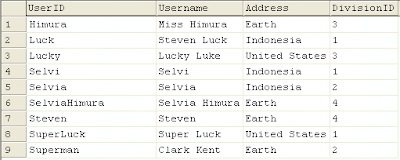
Table MsUser:


After creating the tables and inserting the data, execute the following query to select the data, sorted by the field Username.

-- Select All Data Sorted by Username
select a.UserID, a.Username, a.Address, a.DivisionID, b.DivisionName
from dbo.MsUser a
left join dbo.MsDivision b
on b.DivisionID = a.DivisionID
order by a.Username


Here is the result:


Here is the part about how to create Paging in SQL.

We will use the functionality of Stored Procedure to retrieve the data.
Here is the query of the stored procedure used to retrieve the paged data.

create procedure dbo.spr_GetSimplePaging
@PageSize int, -- @PageSize = item per page
@PageNo int -- @PageNo = current page
as
set nocount on

-- Create Temporary Table to Store the Raw Data
-- The content of the temporary table: An identity field which will be used to determine the paging
-- and the columns contained in the original table
create table #temp
( UniqueID int identity, -- will be used to determine the paging
UserID char(20),
Username varchar(100),
Address varchar(50),
DivisionID int,
DivisionName varchar(50)
)

-- Select the Raw Data into temporary table #temp
insert into #temp ( UserID, Username, Address, DivisionID, DivisionName )
select a.UserID, a.Username, a.Address, a.DivisionID, b.DivisionName
from dbo.MsUser a
left join dbo.MsDivision b
on b.DivisionID = a.DivisionID
order by a.Username

-- Get Data Using Formula for Paging
select UserID, Username, Address, DivisionID, DivisionName
from #temp
where UniqueID between ( @PageNo - 1 ) * @PageSize + 1
and @PageNo * @PageSize

-- Drop temporary table
drop table #temp


There are 3 main parts in the data retrieval process:
1. Create a temporary table which will be used to store the raw data. The temporary table will consist of an identity field which will be used to determine the paging (we use a field named UniqueID in the query above) and the columns contained in the original table(s).
Here is the first part of the query:

create table #temp
( UniqueID int identity, -- will be used to determine the paging
UserID char(20),
Username varchar(100),
Address varchar(50),
DivisionID int,
DivisionName varchar(50)
)


2. Select the raw data into a temporary table. We name the temporary table #temp on the sample query above.

Here is the second part of the query:

insert into #temp ( UserID, Username, Address, DivisionID, DivisionName )
select a.UserID, a.Username, a.Address, a.DivisionID, b.DivisionName
from dbo.MsUser a
left join dbo.MsDivision b
on b.DivisionID = a.DivisionID
order by a.Username


3. Get the data using formula for Paging.

Here is the third part of the query:

select UserID, Username, Address, DivisionID, DivisionName
from #temp
where UniqueID between ( @PageNo - 1 ) * @PageSize + 1
and @PageNo * @PageSize


Notice the formula used above.
The formula used to get the data between the wanted page is:
select data where UniqueID between ( @PageNo - 1 ) * @PageSize + 1 and @PageNo * @PageSize

Therefore, if we would like to retrieve the data of PageSize = 5 on Page 1:
We will get the data with the following condition
UniqueID between ( 1 - 1 ) * 5 + 1 and 1 * 5
UniqueID between 1 and 5


If we would like to retrieve the data of PageSize = 5 on Page 2:
We will get the data with the following condition
UniqueID between ( 2 - 1 ) * 5 + 1 and 2 * 5
UniqueID between 6 and 10


Example:
The data retrived from the select query will be:
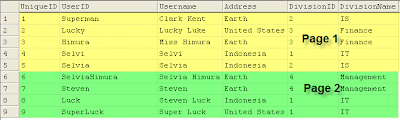

If the PageSize is set to 5 item per page, then the top 5 users will be displayed on Page 1 and the next 5 users will be displayed on Page 2.
Using the query

-- Example : PageSize = 5, PageNo = 1
spr_GetSimplePaging 5, 1


The data retrieved on Page 1 will be:
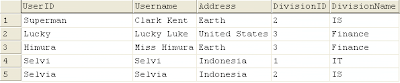


To get the data for the second page, use the query:

-- Example : PageSize = 5, PageNo = 2
spr_GetSimplePaging 5, 2


The data retrieved on Page 2 will be:


The sample query used to create simple paging above will perform quite slowly when the data is very big. To optimize the performance, therefore, we will have to make a little modification on the query.

Here is the modified query:

create procedure dbo.spr_GetModifiedPaging
@PageSize int, -- @PageSize = item per page
@PageNo int -- @PageNo = current page
as
set nocount on

-- Create Temporary Table to Store the Raw Data
-- The content of the temporary table: An identity field which will be used to determine the paging
-- and the UNIQUE COLUMN(S) - usually marked as primary key - contained in the original table
create table #temp
( UniqueID int identity, -- will be used to determine the paging
UserID char(20)
)

-- Select the Raw Data into temporary table #temp
insert into #temp ( UserID )
select a.UserID
from dbo.MsUser a
order by a.Username

-- Get Data Using Formula for Paging
-- Join the data with the original table(s)
select a.UserID, b.Username, b.Address, b.DivisionID, c.DivisionName
from #temp a
left join dbo.MsUser b
on b.UserID = a.UserID
left join dbo.MsDivision c
on c.DivisionID = b.DivisionID
where UniqueID between ( @PageNo - 1 ) * @PageSize + 1
and @PageNo * @PageSize

-- Drop temporary table
drop table #temp


Instead of storing all raw data in the temporary table, we actually only need to store the unique data, thus, we only need to create a temporary table containing UniqueID and the UserID:

create table #temp
( UniqueID int identity, -- will be used to determine the paging
UserID char(20)
)


On the second part, the query will be much simpler:

insert into #temp ( UserID )
select a.UserID
from dbo.MsUser a
order by a.Username


On the third part, we will then have to join the tables used to get the complete data to be retrieved.

select a.UserID, b.Username, b.Address, b.DivisionID, c.DivisionName
from #temp a
left join dbo.MsUser b
on b.UserID = a.UserID
left join dbo.MsDivision c
on c.DivisionID = b.DivisionID
where UniqueID between ( @PageNo - 1 ) * @PageSize + 1
and @PageNo * @PageSize


Using the modified query, the temporary table created will be smaller. Consequently, the raw data stored in the temporary table will be smaller. The complete data will then be selected by joining it with the original table(s) on the last part. This enables better performance while retrieving a very big data.


If you need the source code, click on the link to the file to download the source code: Paging in SQL
Share:

Tuesday, March 2, 2010

"Friendly Visitors" Blog Award

Another blog award in this new year, from a friend, Septhian. Have just had time to post this blog award :) Thank you, Septhian ^^


This blog award is aimed at increasing the PageRank of the blogs listed from back links.
I decide to give this blog award to my friends:

  1. Amru Site

  2. Aphrodite: My so-called Life!

  3. Happy Family

  4. Blog Abbe

  5. MultiBrand

  6. Dark Smile

  7. Invaicu

  8. Ria Adria

  9. Start from the Experience

  10. Cynthia


Please kindly accept the award if you don't mind :)


For friends who are interested in this blog award, you are more than welcomed to post this blog award. However, please, do follow the rules to post this blog award, so that we can, together, increase our PageRank ^^

The rule is:
Give this "Friendly Visitors" blog award to 10 of your friends. Then, the friends in the list have to put the links beneath on their blogs:

  1. Avanca Linux

  2. Mauren’s Blog

  3. Mizan’s Blog

  4. Local Download

  5. The Vanmovic

  6. Pak De Sulas

  7. Harto Hadi

  8. Edwin's Personal Blog

  9. Sephtian's Blog

  10. Programmer's Laboratory


How to get free back links?
After putting the links above, delete the first link from the list, so that the level of the links move up by one level. Link no. 2 becomes no. 1, Link no. 3 becomes no.2, and so on. Afterwards, put your own link on the last one, i.e. no. 10. Please be honest in doing this. If every award receiver can give it to only 5 other friends, and all of them do the same, then the back links gained will be:
When you are at no. 10, back link = 1
At no.9, back links = 5
At no.8, back links = 25
At no.7, back links = 125
At no.6, back links = 625
At no.5, back links = 3,125
At no.4, back links = 15,625
At no.3, back links = 78,125
At no.2, back links = 390,625
At no.1, back links = 1,953,125

You can copy and paste the post above, and delete the first link, then add your own link on the last one. Otherwise, you can make a post of your own ^^ Remember to put your own link on the last one, i.e. no.10, so that you can get back links optimally.
Share:

Sunday, January 10, 2010

Problem with Crystal Report XI on Windows Vista

I've found an unresolved error recently, while trying to use Crystal Report XI on Windows Vista.

Error: While trying to create database connection on Crystal Report XI, a splash of dialog box which says "Please wait while windows configures Crystal Reports XI" appears. After a second, the dialog box disappears, and nothing happens. Seems like Windows fails to installs the DLL required by Crystal Report. I suppose there's something wrong with Windows Vista about managing the credential while installing Crystal Report, that some DLLs are not correctly registered.

I tried making the report using TTX on Windows XP, then open it on Windows Vista. Error dialog boxes are then displayed:


After searching the solutions on the internet for 2 days, I found a site which gives the following solution. It may work for the others, but it doesn't work for mine. Here's the post:

When running Office 2003 on Windows Vista, and trying to install an office update or do a repair installation, I received the following error:


Error 1904. Setup cannot register module C:\Windows\system32\FM20.DLL. If you click 'Cancel' or 'Ignore', run Setup again and re-install or repair your Office installation. If problem persists, contact your Information Technology department for assistance.


I found a possible solution online, to do the following:


At a command prompt using administrative credentials, run the following command:

REGSVR32 FM20.DLL


After running this command, I received the following error:


The module "FM20.DLL" was loaded but the call to DllRegisterServer failed with error code 0x8002801c

No matter what I tried, I could not get past this DLL registration error.

Here is what Microsoft sent me to fix this:


#1 Download the Subinacl.msi program from Microsoft's website. You can find it here.


#2 Copy the following text in a .bat file and run it with administrative credentials. It may take a while to finish. You will get a "Press any key to continue" message once it completes:


@echo off
subinacl /subkeyreg HKEY_LOCAL_MACHINE /grant=administrators=f
subinacl /subkeyreg HKEY_CURRENT_USER /grant=administrators=f
subinacl /subkeyreg HKEY_CLASSES_ROOT /grant=administrators=f
subinacl /subdirectories %SystemDrive% /grant=administrators=f
subinacl /subkeyreg HKEY_LOCAL_MACHINE /grant=system=f
subinacl /subkeyreg HKEY_CURRENT_USER /grant=system=f
subinacl /subkeyreg HKEY_CLASSES_ROOT /grant=system=f
subinacl /subdirectories %SystemDrive% /grant=system=f

@Echo =========================
@Echo Finished.
@Echo =========================
@pause


#3 Try and register FM20.dll again, and it should succeed:

REGSVR32 FM20.DLL


If the solution above work for you, then it's fixed. If it doesn't, then you might be facing what I'm facing. If you find the solution to this problem, please do not hesitate to comment on this post. It will be really appreciated :)

Share:

Wednesday, December 23, 2009

Tester vs. Developer

Developer vs. Tester

This is just an intermezzo... lol :D

Share:

Monday, December 7, 2009

Error while trying to debug VB.NET desktop application

Error:
Error while trying to run project: Could not load file or assembly "AssemblyName" or one of its dependencies. The given assembly name or codebase was invalid. (Exception from HRESULT: 0x80131047)

This error appears as a dialog box while trying to debug an application.


Solution:
1. Check if the assembly name used for the project contains ' (apostrophe). If it does, go change it, and do not use ' (apostrophe)
2. Check if the name "Program" (without quotes) is used as the assembly name. If it is, go change the name.
3. If still, it does not work, right-click on the Project -> Properties -> Choose tab Debug -> Uncheck the option "Enable the Visual Studio Hosting Process"


Share:

Tuesday, November 10, 2009

Ado command object returns method 'Execute' of object '_Connection' failed

Error: method 'Execute' of object '_Connection' failed


Solution: Check the query used while executing the recordset, it may contain keyword used in the database. In my case, my query is:


select languageid, language from masterlanguage order by languageid


The error occurs because I use a keyword in the query, i.d. language.
To fix the error, either change the column name on the database, or use []:


select languageid, [language] from masterlanguage order by languageid


Share:

Friday, November 6, 2009

Disabling web.config inheritance for child application

Error:
Configuration Error
Description: An error occurred during the processing of a configuration file required to service this request. Please review the specific error details below and modify your configuration file appropriately.

Parser Error Message: Could not load file or assembly 'Control' or one of its dependencies. The system cannot find the file specified. (d:\Web\VS\Website\web.config line 82)

Source Error:

Line 77: <httphandlers>
Line 78: <remove path="*.asmx" verb="*">
Line 79: <add path="*.asmx" verb="*" type="System.Web.Script.Services.ScriptHandlerFactory, System.Web.Extensions, Version=3.5.0.0, Culture=neutral, PublicKeyToken=31BF3856AD364E35" validate="false">
Line 80: <add path="*_AppService.axd" verb="*" type="System.Web.Script.Services.ScriptHandlerFactory, System.Web.Extensions, Version=3.5.0.0, Culture=neutral, PublicKeyToken=31BF3856AD364E35" validate="false">
Line 81: <add path="ScriptResource.axd" verb="GET,HEAD" type="System.Web.Handlers.ScriptResourceHandler, System.Web.Extensions, Version=3.5.0.0, Culture=neutral, PublicKeyToken=31BF3856AD364E35" validate="false">
Line 82: <add path="SecurityImageHandler.ashx" verb="*" type="Control.SecurityImageControlHandler, Control">
Line 83: </httphandlers>


Solution:
I have an application which has a child (sub folder) application in it. In my case, I added a tag in the parent application:

<add path="SecurityImageHandler.ashx" verb="*" type="Control.SecurityImageControlHandler, Control">


When deployed, an error occurs in the child application, since the assembly added in the parent application is also recognized by the child application. To avoid the child application from reading the tag added on the parent application, we have to remove the tag on the web.config of the child application.

After adding the code to remove the tag, it will look like this:

<httpHandlers>
...........
...........
<remove verb="*" path="SecurityImageHandler.ashx"/>
...........
...........


Share:

Pinky award :D

Another award from a sweet friend, Ria Adria ^^


Share:

You may be intersted in

Related Posts

Updating Table Containing Xml Column via LinkedServer

If you are trying to update a table containing XML column via Linked Server in SQL Server, and you are not able to, you are not alone. There...

About Me

My photo
Is an ordinary man, with a little knowledge to share and high dreams to achieve. I'd be glad if I can help others, 'coz the only thing for the triumph of evil is for a good man to do nothing.

About Blog

You can find a lot of debugging and deploying problems while developing applications in .NET and Visual Basic here. There are also some querying tips in SQL and typical source codes which might be useful shared here.

Popular Posts

Blogroll

Followers

Leave a Message